Wow. What an amazing automation.
Did you know that you could pull data from a spreadsheet into Canva to populate images/PDFs in bulk?
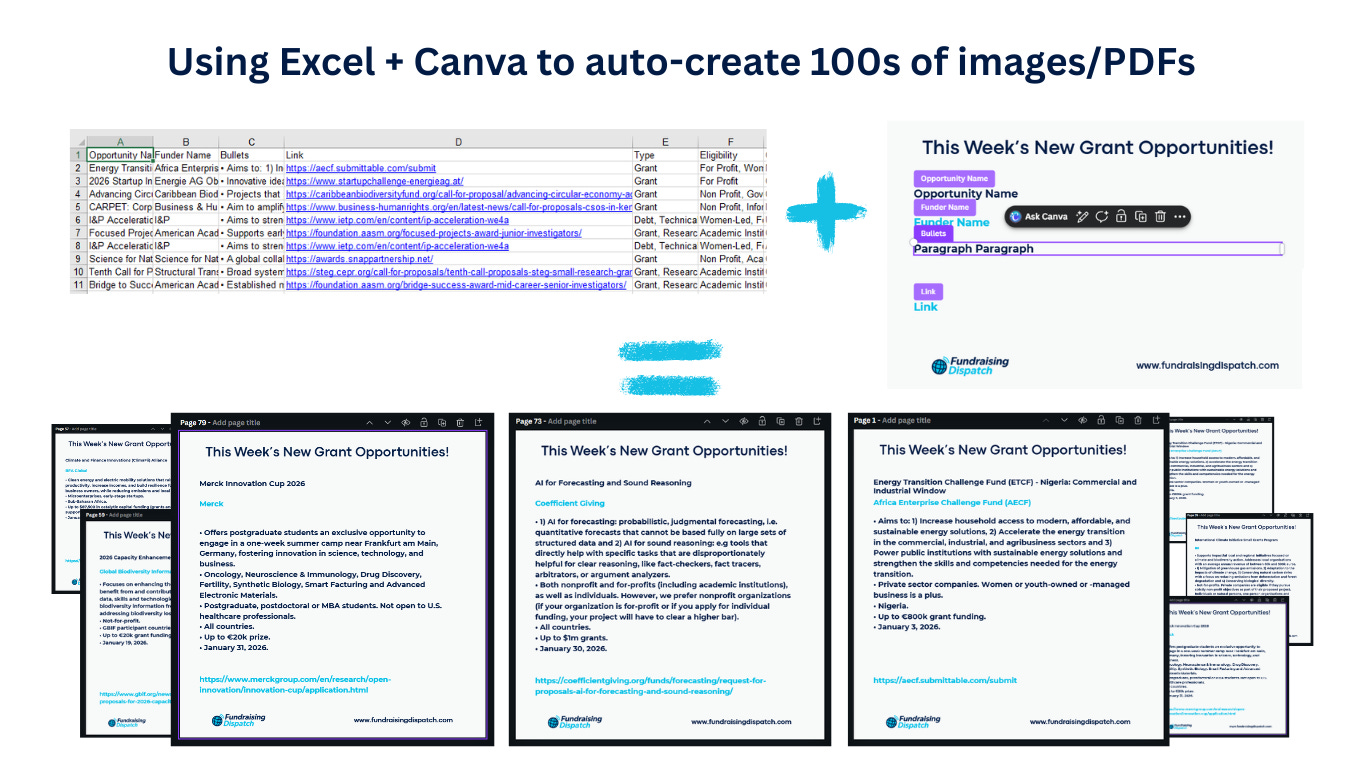
Here’s how:
You need to be a pro/paid Canva.com user - but it’s so worth it
Set up a Canva project to your ideal dimensions
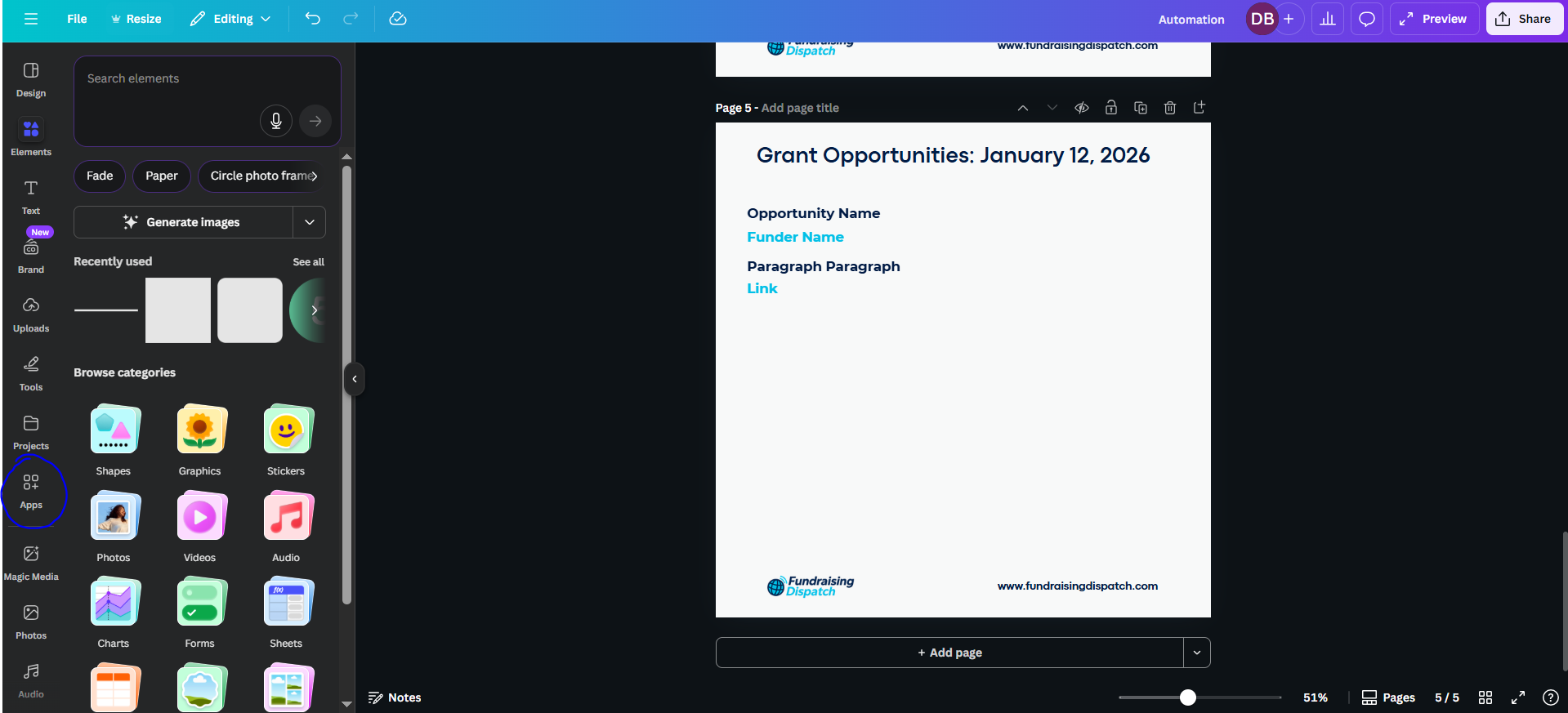
Add placeholder text boxes or image frames for the data fields you want to populate
Choose “Bulk Create”
Upload your CSV/Excel and quickly spot-check your data
Connect your text (or image) boxes with each of your data fields one-by-one
Double check your advanced options (so don’t get hundreds of separate designs)
Review your output; if needed, make any formatting adjustments to the template (keeping in mind the length of the text strings in your CSV) or individual “pages”
Download and use your, now, hundreds of individual images/pdfs
Full walkthrough and how-to guide (with screenshots) for premium subscribers below 👇
What are some things we use this for?
Remember our filterable/searchable database of grant opportunities actively accepting applications?
The only one of its kind?
If you don’t here’s what it looks like:
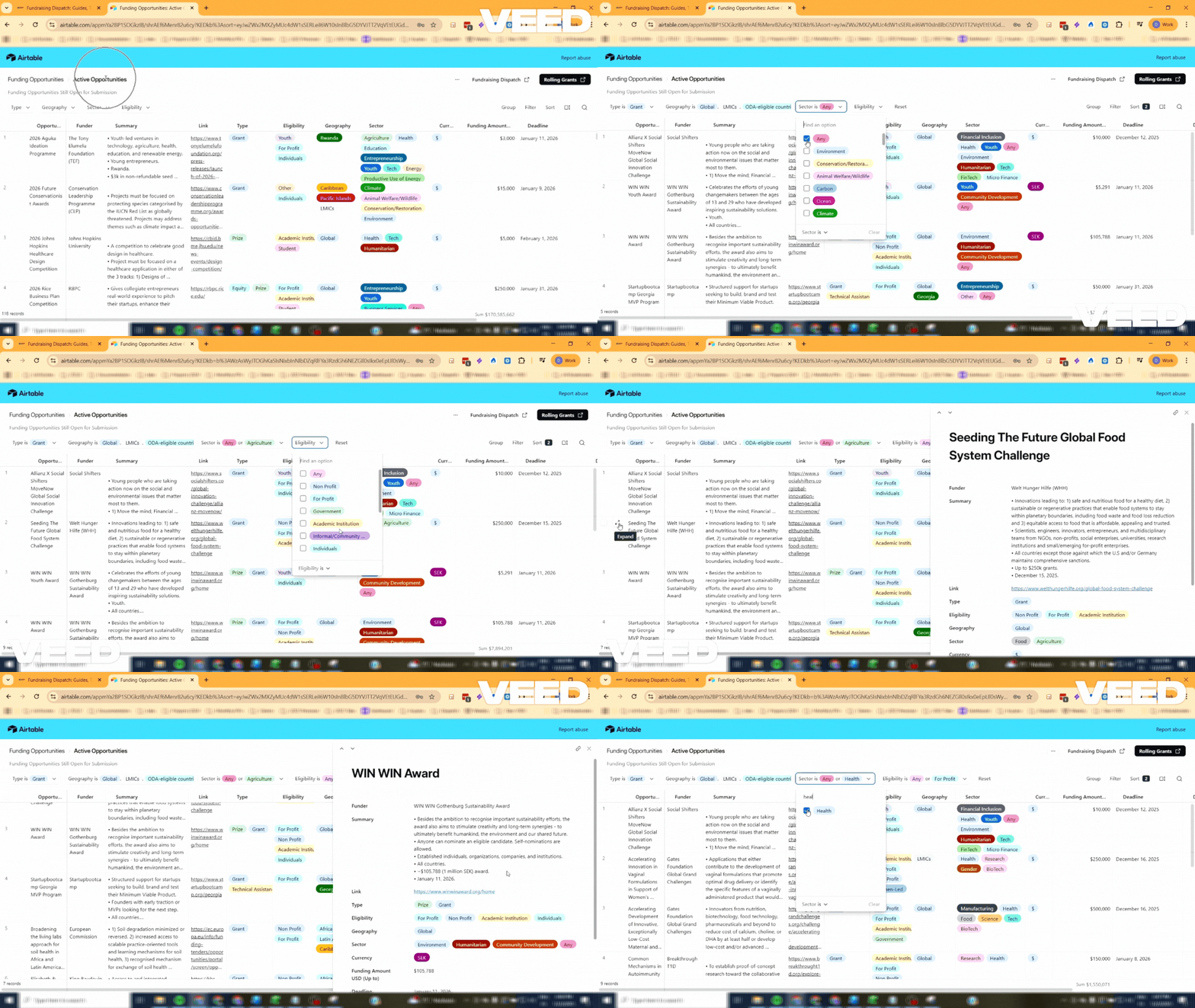
Side Note: You can take a sneak peek at our database (with grants past their deadlines) here or subscribe to Fundraising Dispatch paid so you can isolate and track the 200+ ACTIVE grants from our newsletters!
When we export our Airtable data as a CSV… it looks like this:
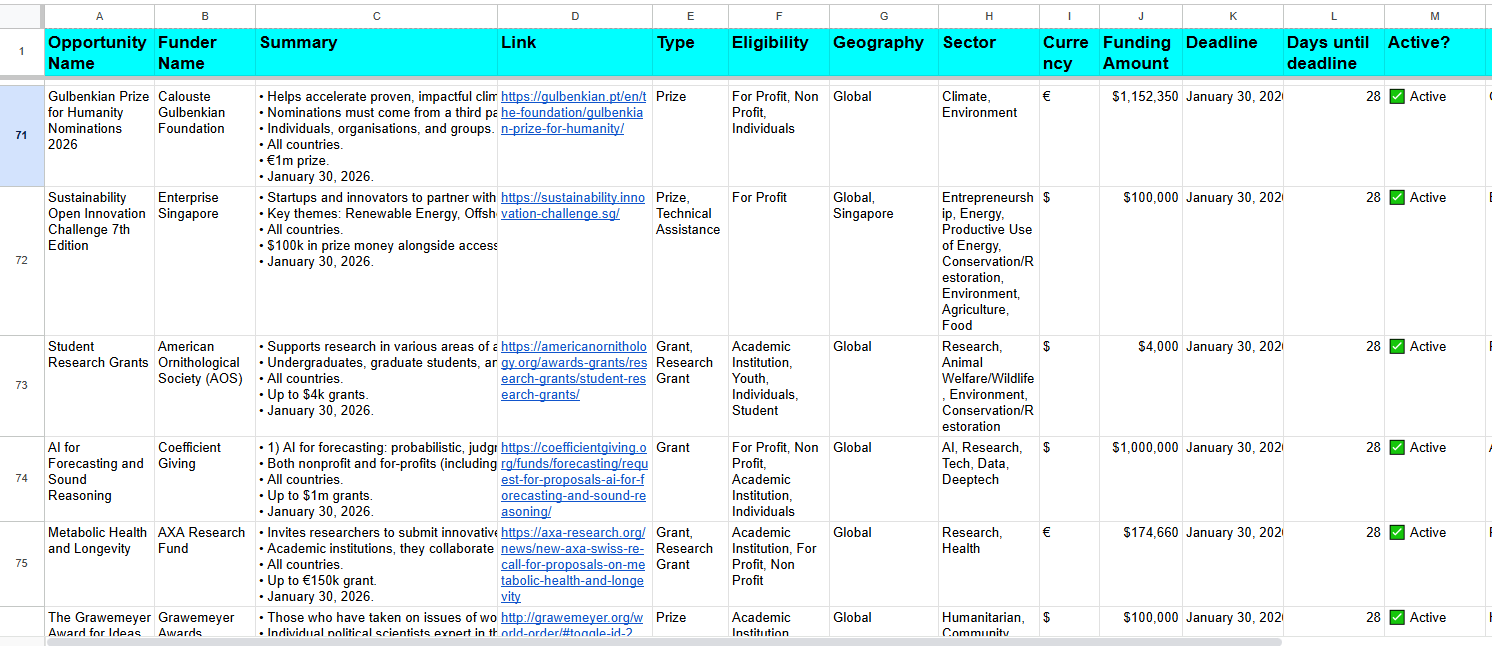
And when we create a Canva template that looks like this…
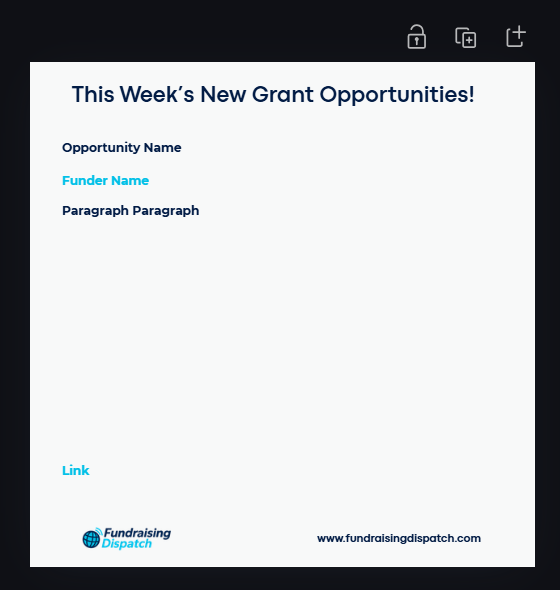
We can then auto-generate hundreds (if not thousands, tens of thousands) of individual files, all based on our data, and ready for download.
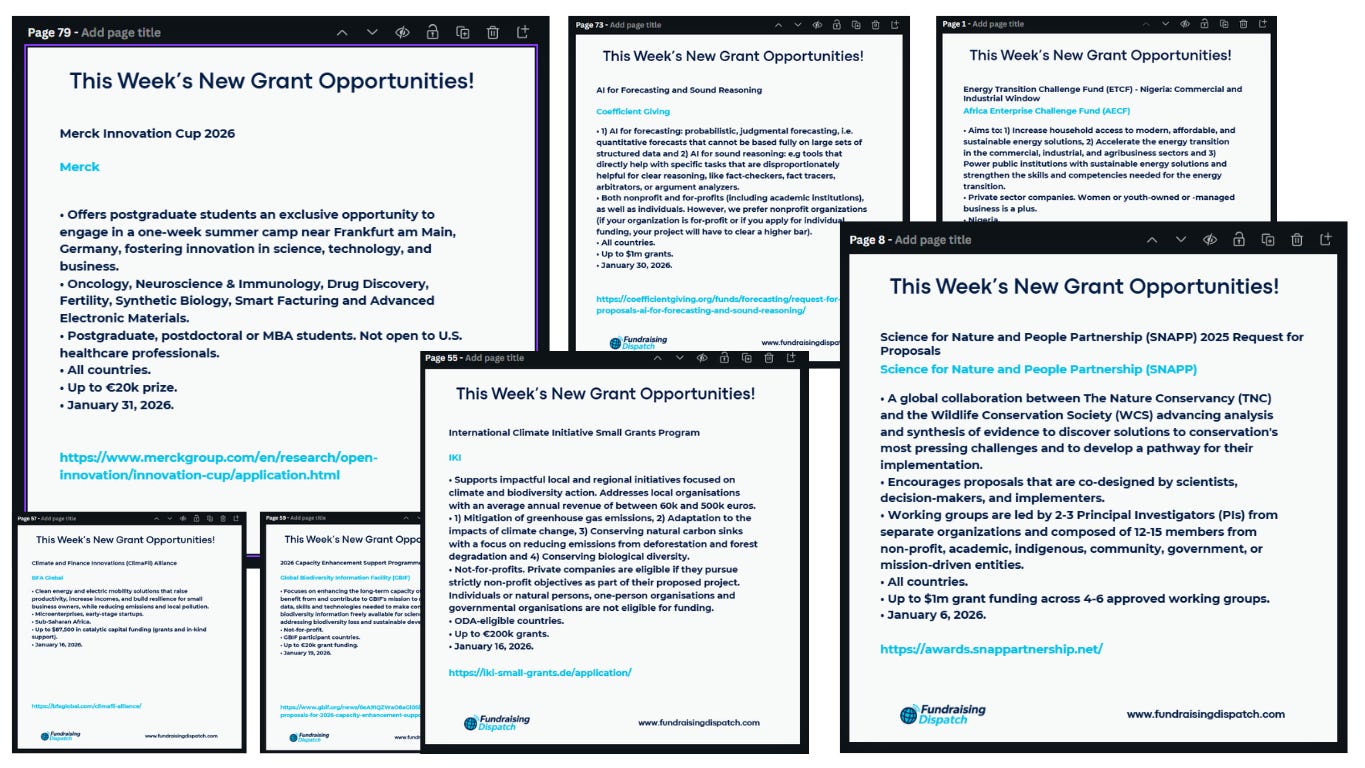
And we can now post individual grant opportunities (as individual images or PDFs) to Substack notes, LinkedIn, other social media, and much more.
What can you use this for?
Think about any use case where you’d want large numbers of personalized images or PDFs. Or when you have data on a spreadsheet that you want in other formats.
Some examples:
Posters
Social media posts
Event agendas
Speakers at events
Event badges/name tags
Personalized invitations
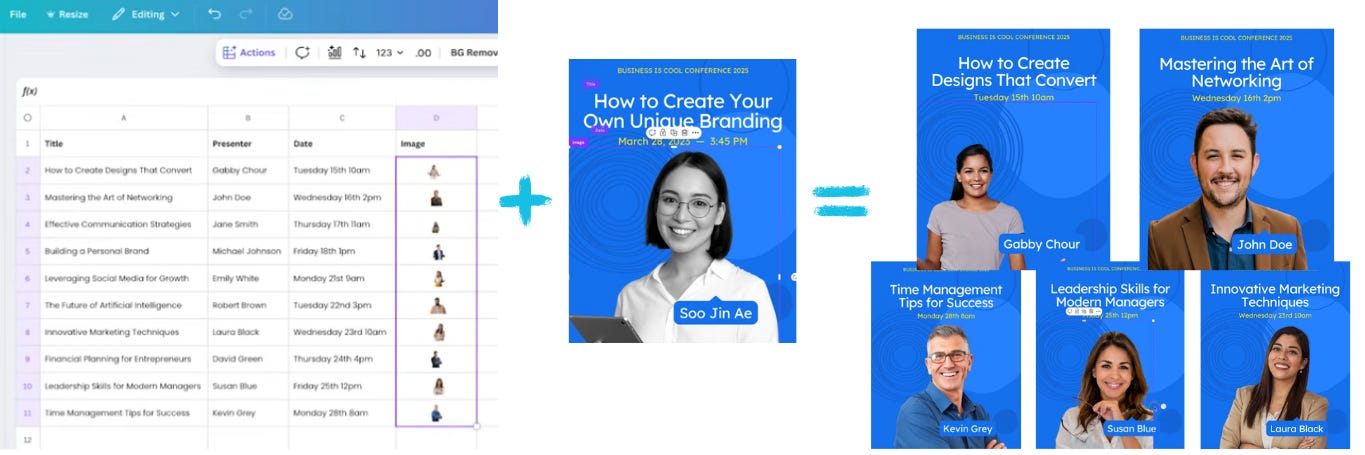
* Credit Jacqui Naunton on YouTube for the screenshots above
Certificates
FAQ graphics
Product catalogues
Recruiting / job posts
Onboarding materials
Customer Testimonials
Field officer visit sheets
Educational/student materials
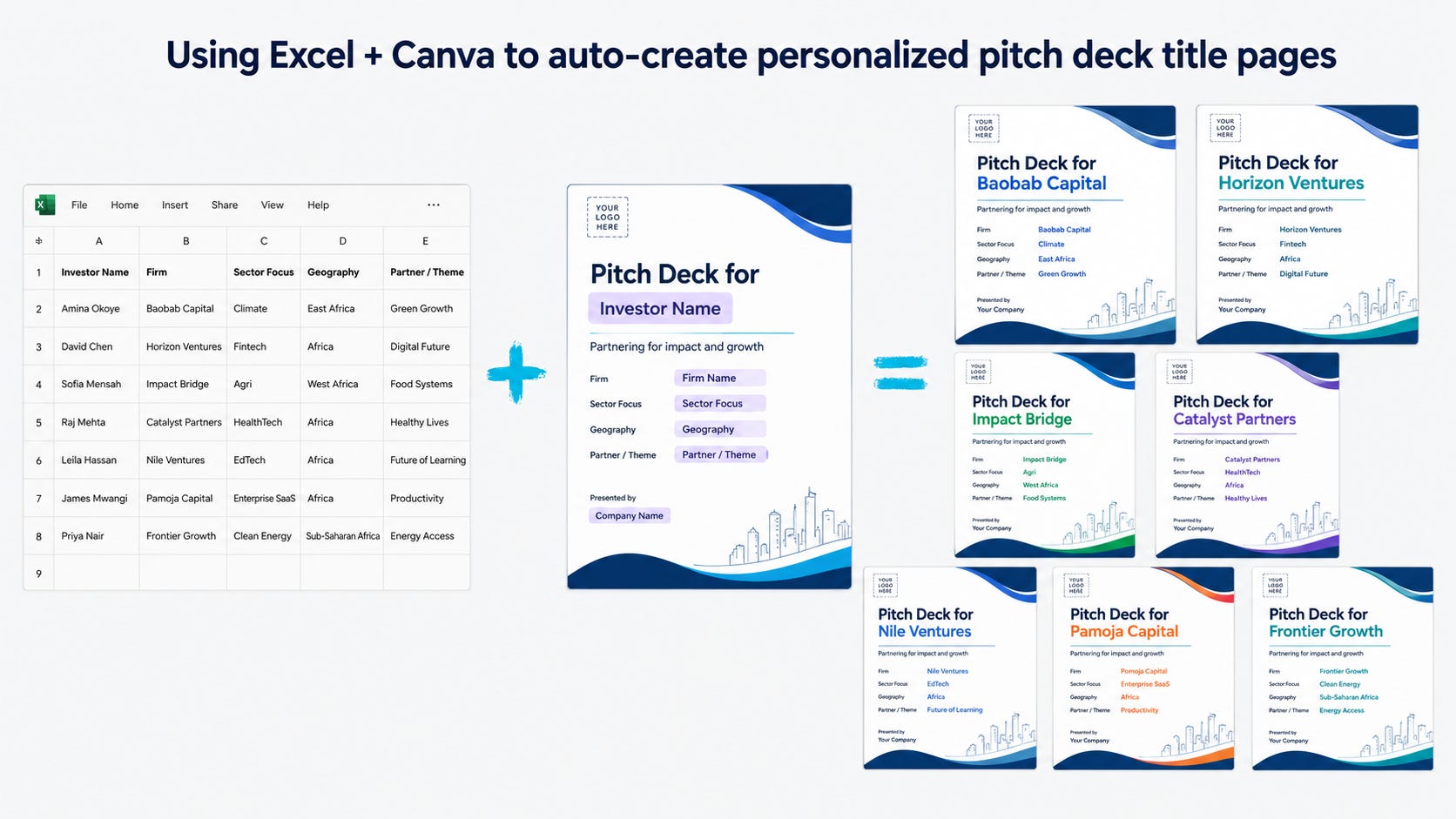
Customized one-pagers / decks
Localized/multi-language graphics
Regional, thematical etc personalization in a PDF report
Let’s break down a few use cases
1. Farmer training cards/documents
For agribusinesses, cooperatives, and agri-tech companies:
Use a spreadsheet with:
Region | Planting season | Crop type | Pest warning | Recommended input
Local language translations
ETC
Then bulk create:
WhatsApp-ready farmer advisory cards
Printable extension-agent handouts
ETC
2. Beneficiary/Customer impact profiles
For funder reporting, social media, and fundraising, you can turn a spreadsheet of stories/data into:
One-page profiles
“Before / After” impact cards
Investor update graphics
Case study PDFs
ETC
Example fields:
Name | Location | Challenge | Intervention received | Outcome | Quote | Photo
3. Event/conference follow-up materials
Have a great conversation with a potential funder/customer at an in-person event? (Did you take a selfie?)
Create personalized:
“Great meeting you” follow-up cards
Pitch Deck Title Pages
Session/Speaker recaps
Can you think of more ways you can use this tool and automation in your organization?
Comment on this post and/or send us an email!
Anywhere your organization has structured data, there’s probably an opportunity to turn that data into something useful, visual, and automatically repeatable.
The key is simple: if your data is structured cleanly, Canva can turn each row into a finished design.
Let’s break down exactly how to do this
Via exact Canva set up and step-by-step guide
And
Short video tutorial
STEP 1: Set up a Canva project to your ideal dimensions
In this case we’re creating a LinkedIn image/PDF optimized for mobile (1200 x 1200 pixels).